


Animated Outline (Post Process Materials)
8 animated post process outline styles with 48 ready-to-use presets.
Overview
Animated Outline is a pack of stylized post process outline materials for highlighting characters, items, enemies and interactive objects. Each object takes its outline color from its Custom Stencil value (1, 2 or 3), so one material can show friends, enemies and loot in different colors at the same time.
- 8 master materials, 48 material instance presets (6 per style).
- Draw Through Walls and Scale With Distance switches on every material.
- Optional effects are static switches, so disabled effects cost nothing.
- No textures, no plugins, no Substrate. Works with the default renderer.
Setup Guide
Step 1: Enable Custom Stencil
Open Project Settings → Engine → Rendering → Postprocessing and set Custom Depth-Stencil Pass to Enabled with Stencil.
Step 2: Mark the Objects
Select a mesh component and in Details → Rendering:
- Enable Render CustomDepth Pass.
- Set CustomDepth Stencil Value to
1,2or3. The value picks the outline color.
Step 3: Add a Preset
Place a Post Process Volume (enable Infinite Extent (Unbound) to cover the whole level) and add any MI_Outline_* instance from Content/AnimatedOutline/Materials/InstancesOutline to Post Process Materials.
To make your own look, create a Material Instance from one of the M_Outline_* masters in Materials/MastersOutline, or duplicate a preset and tweak it. Do not edit the masters directly.
Common Parameters
Every master has the same 00_Visibility group and per-stencil colors. Style-specific groups (Embers, RGBSplit, Grid, Scan and so on) are numbered in the order they are applied.
| Parameter | Description |
|---|---|
DrawThroughWalls | Static switch. On: the outline is visible when the object is hidden behind other geometry. Off: only the visible part is outlined. |
ScaleWithDistance | Static switch. The outline gets thinner as the object moves away from the camera. |
DistanceReference | Distance in cm at which the outline has its full thickness. |
MinDistanceScale | Lower limit of the thickness scale for distant objects. |
| Colors (stencil 1 / 2 / 3) | Outline color for each Custom Stencil value. |
OutlineThickness, OutlineIntensity | Base line width in pixels and its brightness. |
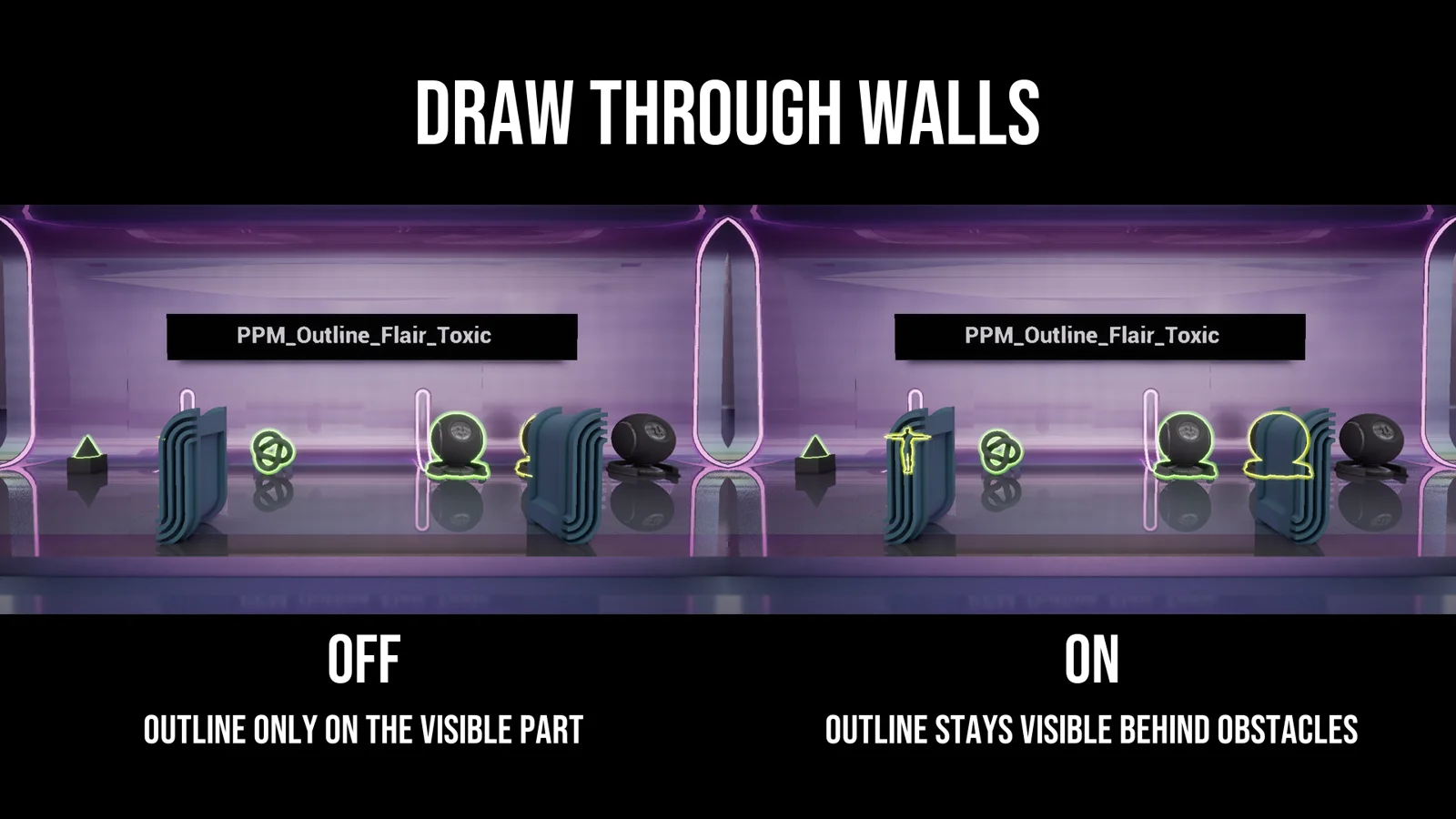
Draw Through Walls: off (left) and on (right). The occluded part of the object keeps its outline.
Glitch and Fire Ember expose each effect as a static switch (09_Switches, EnableSparks). Turn off what you don't use: the shader is recompiled without it.
Styles & Presets
Presets live in Materials/InstancesOutline/<Style> and are named MI_Outline_<Style>_<Preset>.
Sketch
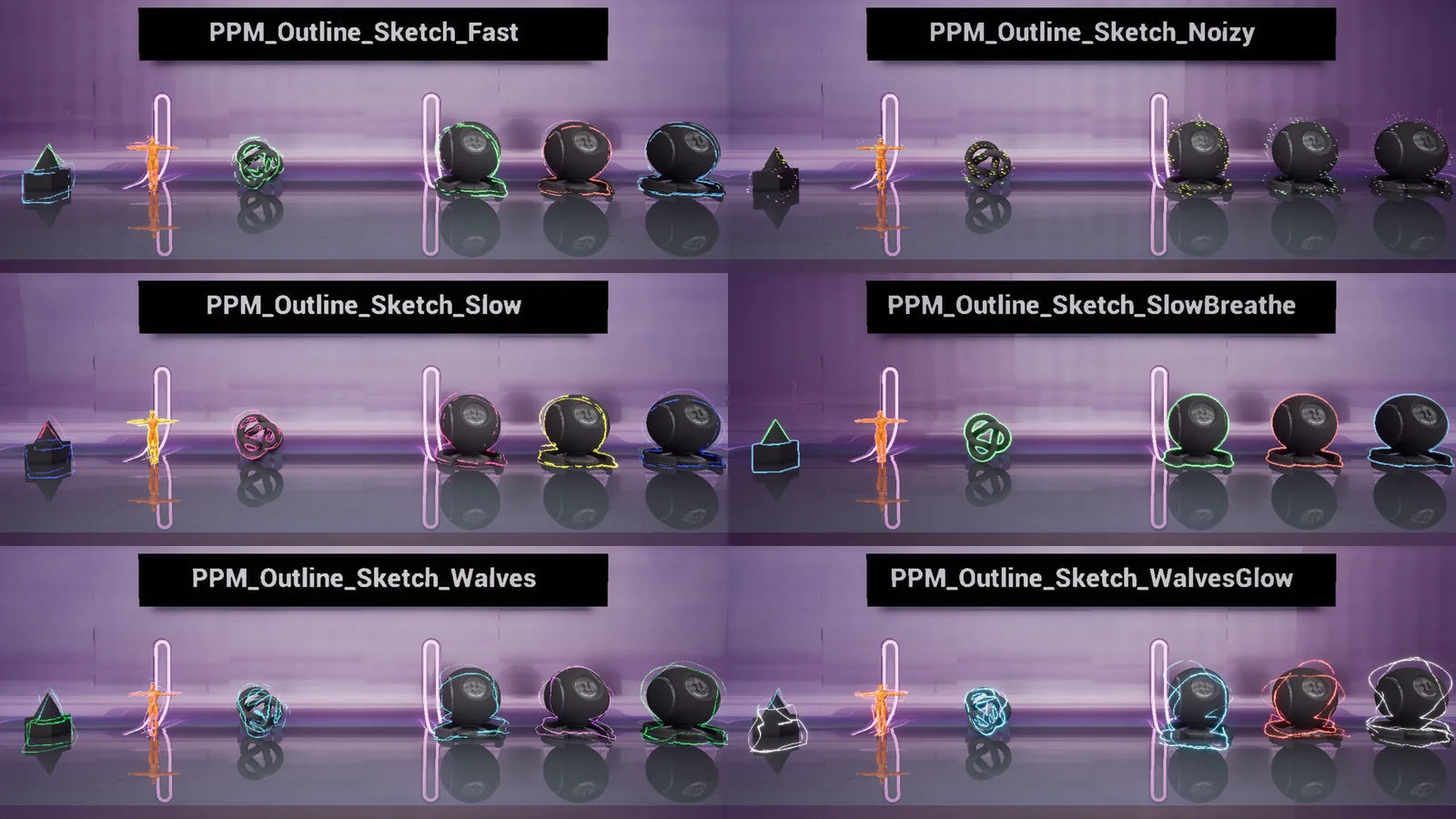
Hand-drawn boiling lines with jitter, breaks and grain. Presets: Fast, Noizy, Slow, SlowBreathe, Walves, WalvesGlow.
Fire Ember
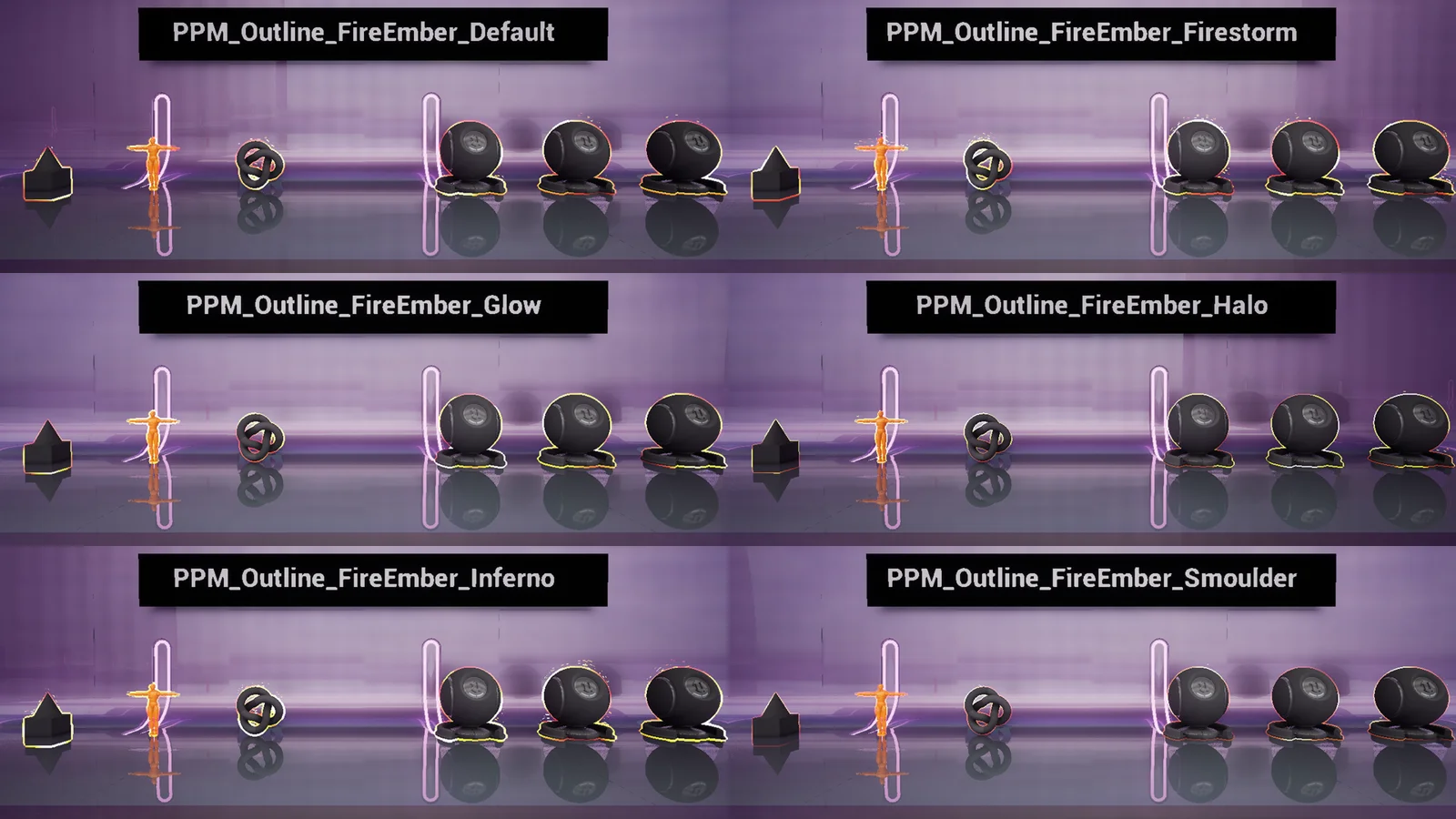
Burning edge with glowing embers and rising sparks. Presets: Default, Firestorm, Glow, Halo, Inferno, Smoulder.
Flair
Soft glowing halo with pulse. Presets: Default, Arcane, Heartbeat, Holy, Subtle, Toxic.
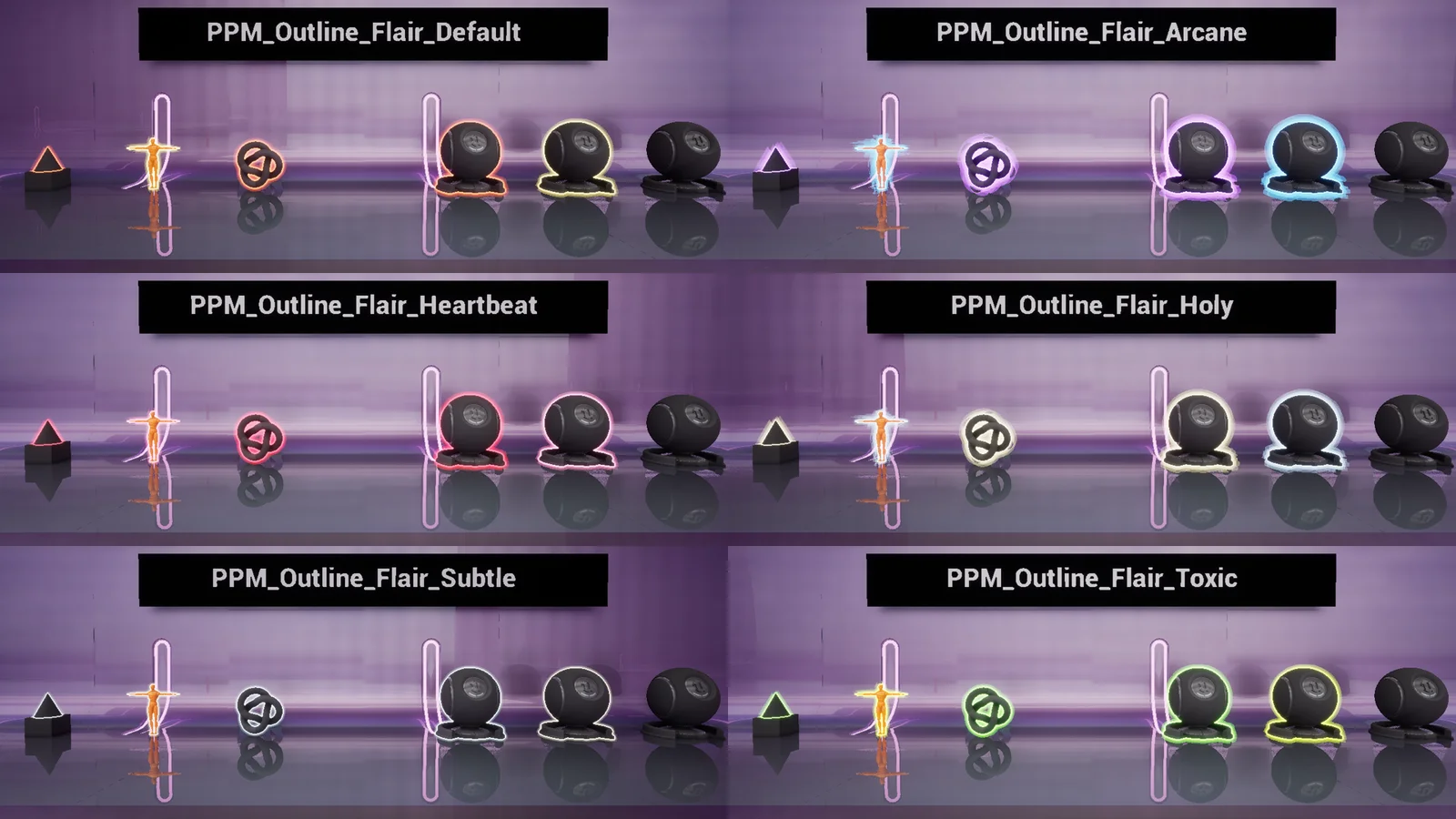
Glitch
RGB split, slicing, flicker, artifact tails and scan line. Presets: Default, Blue, Chromatic, Corrupted, Hologram, Matrix.
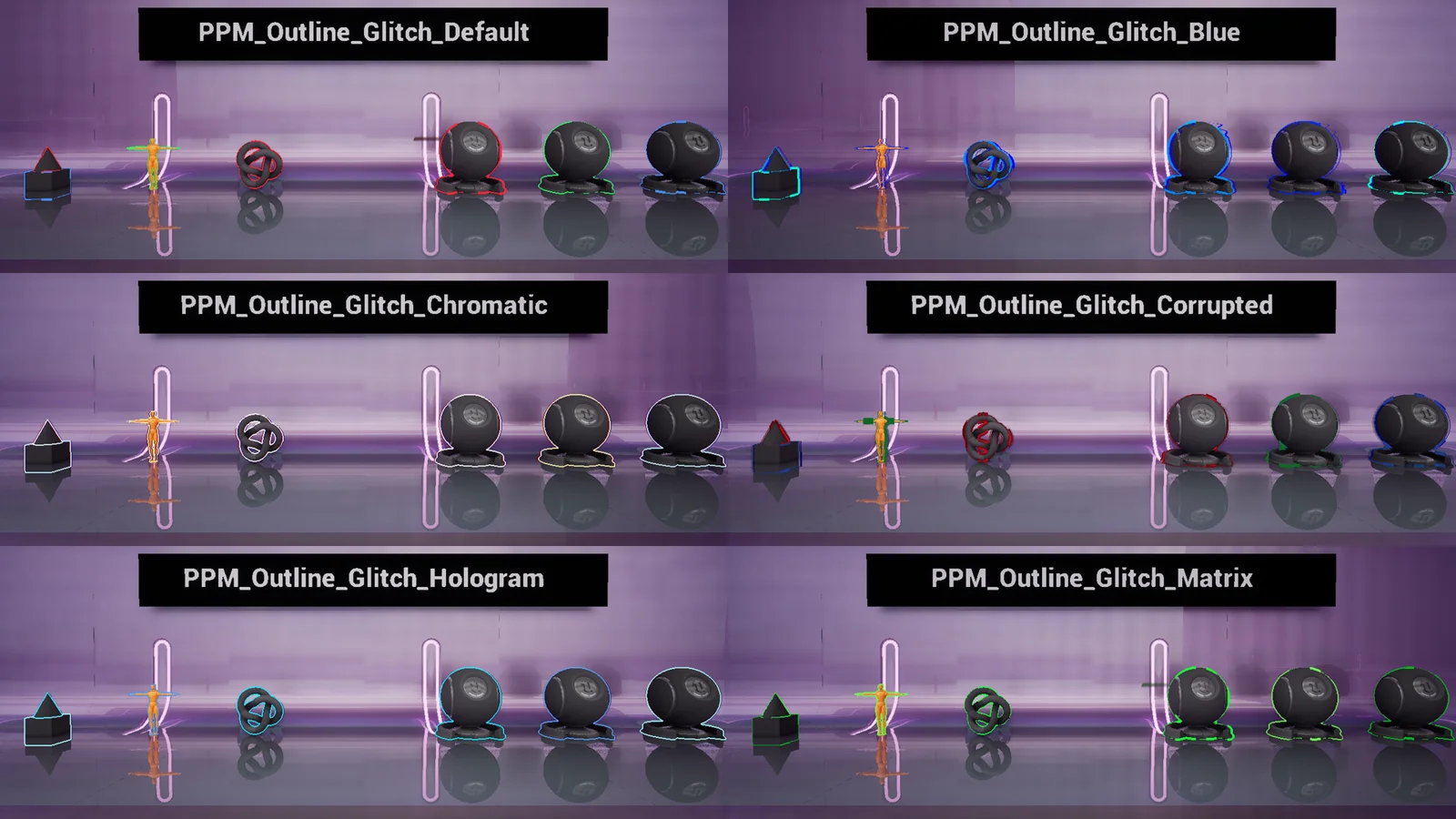
CCTV Static
Security camera look with scanlines, interlace, noise and tracking bar. Presets: Default, Amber, Clean, Monochrome, NightVision, Thermal.
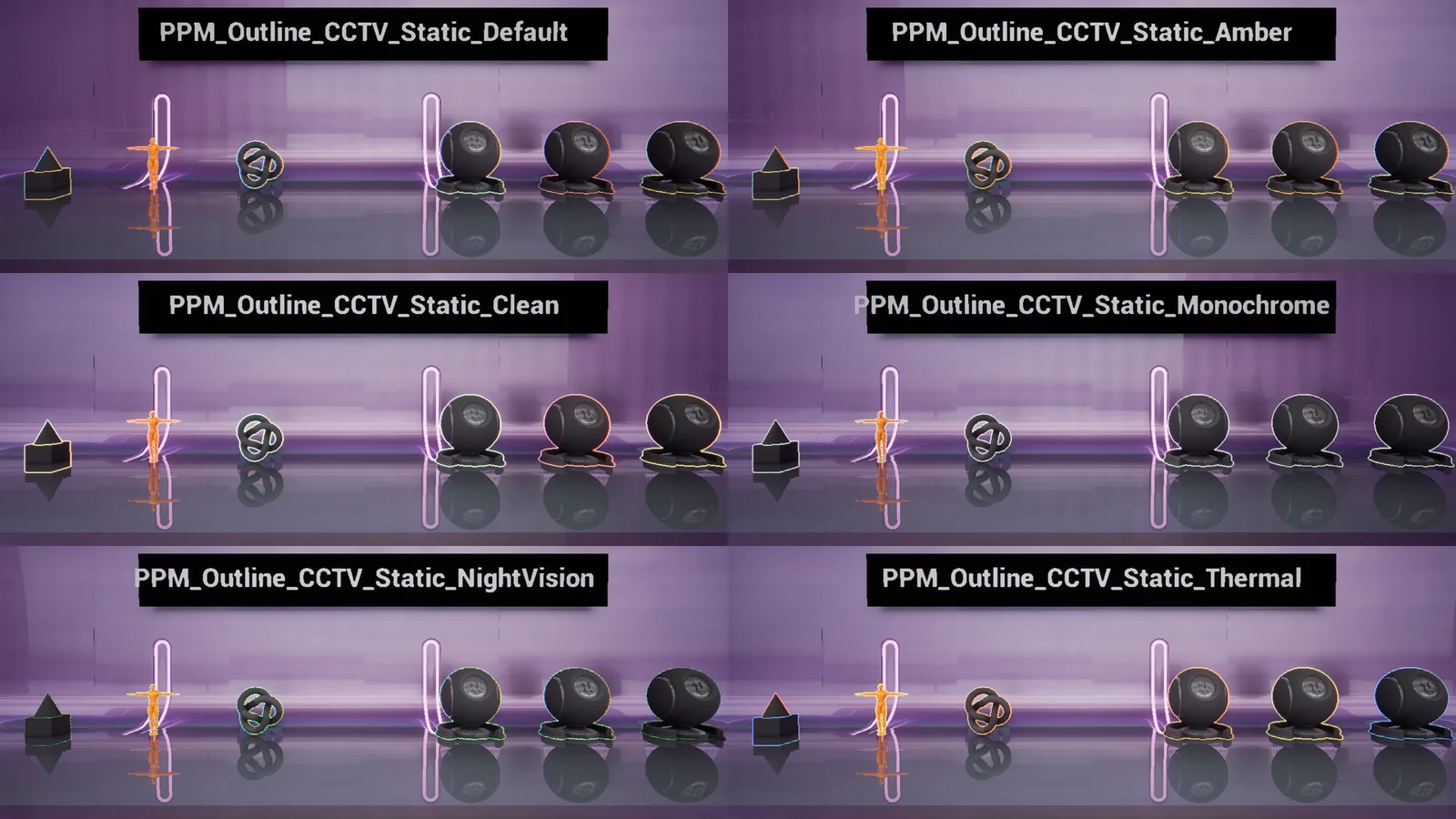
CCTV Dynamic
Broken signal with tearing, blocks and chroma shift. Presets: Default, Broken, Calm, Noir, Security, VHS.
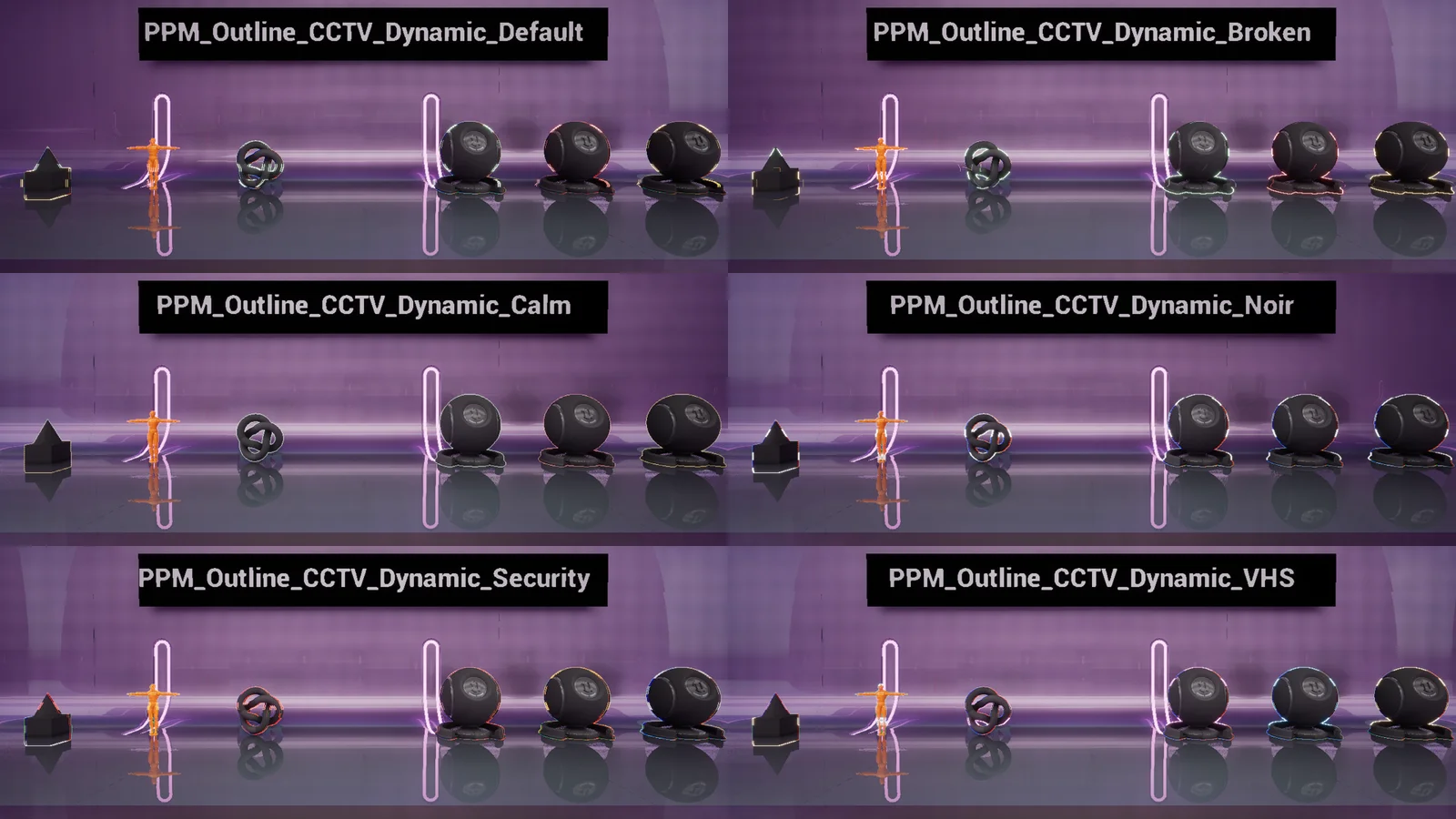
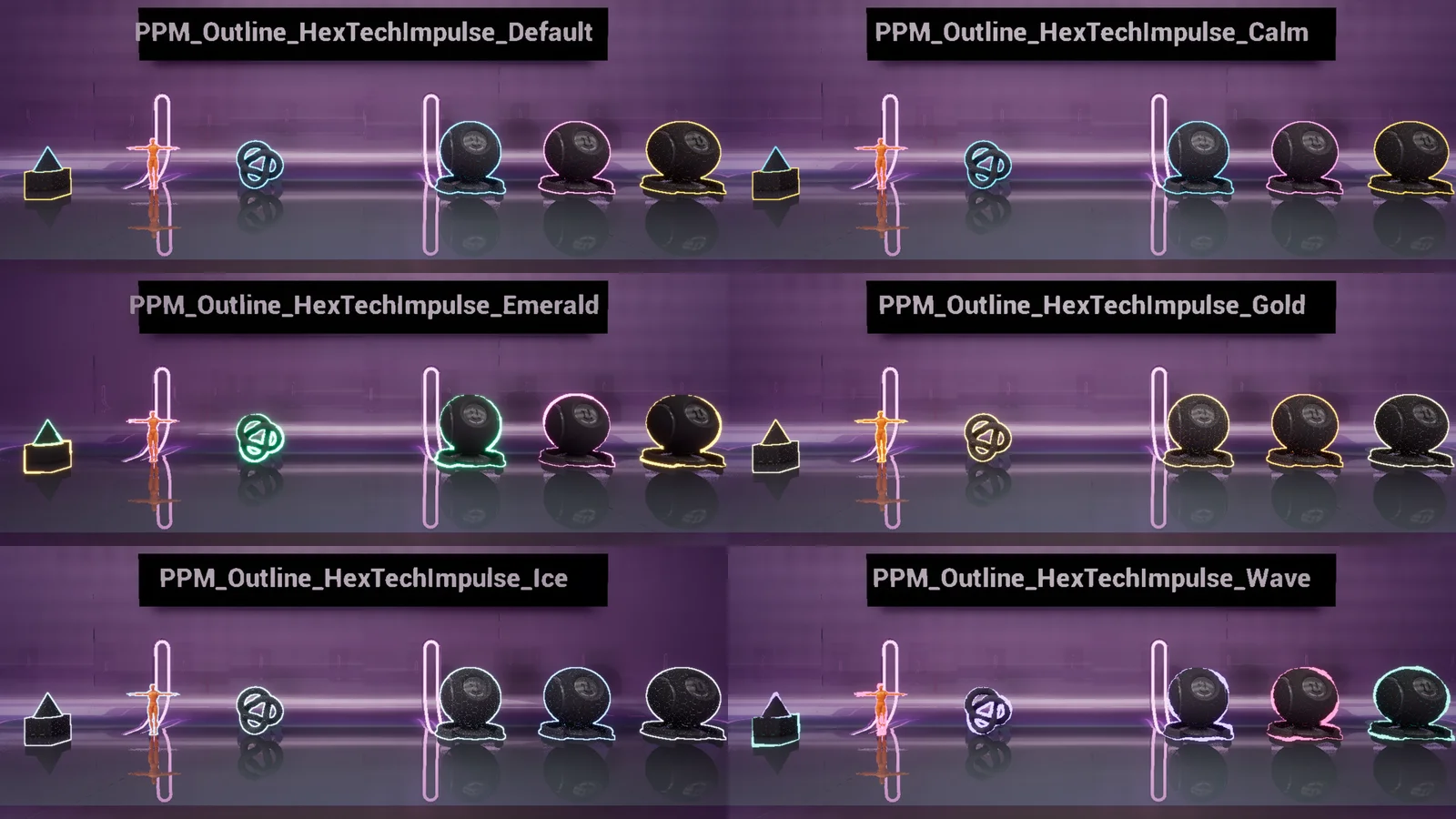
HexTech Impulse
Energy outline with pulses, waves and a hex grid on the surface. Presets: Default, Calm, Emerald, Gold, Ice, Wave.
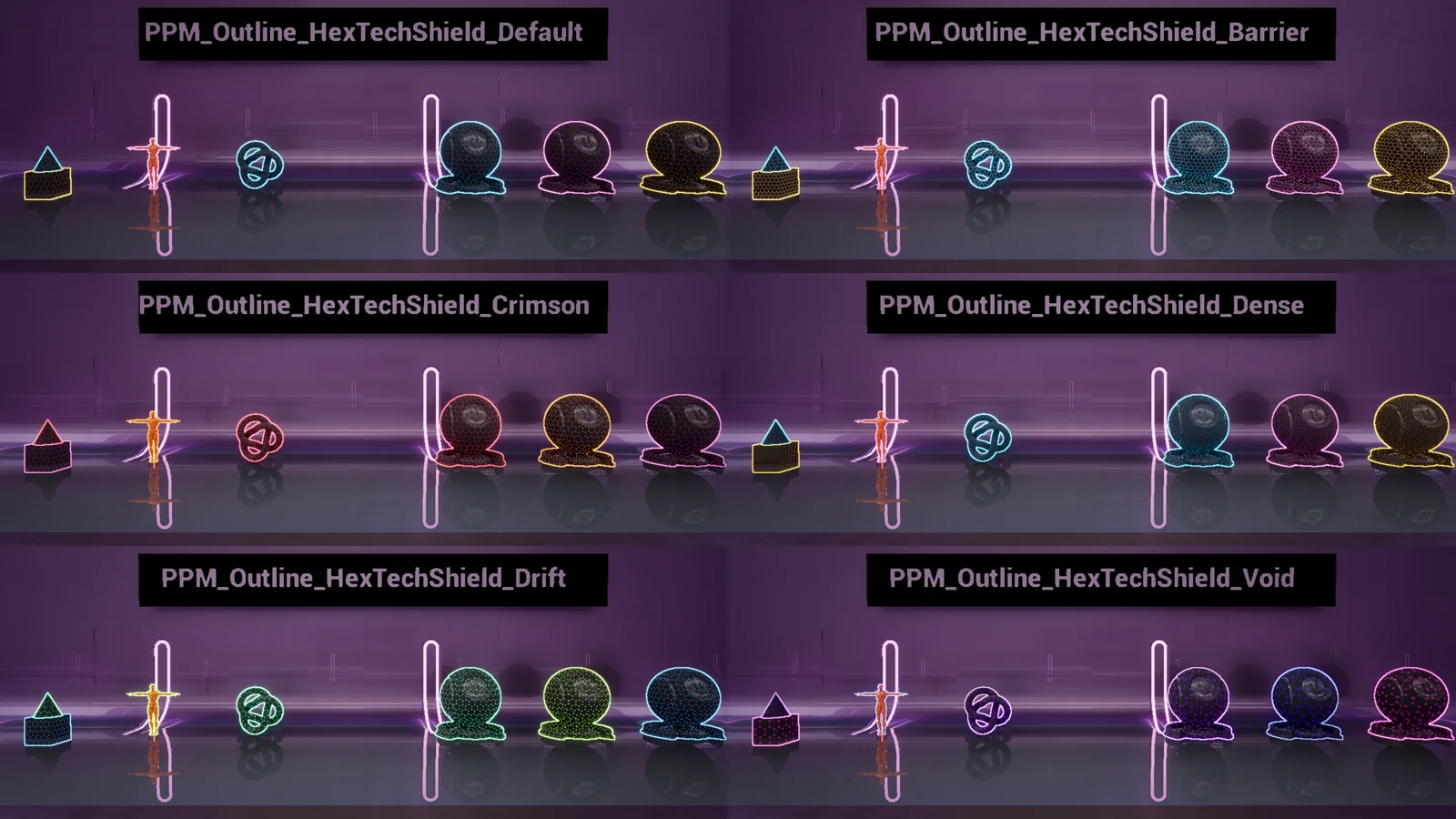
HexTech Shield
Shield-like hex grid wrapped around the object in world space. Presets: Default, Barrier, Crimson, Dense, Drift, Void.
Demo Maps
- Overview (
Maps/L_Overview): all 48 presets side by side in showcase booths. Walk up to a booth to see its preset. - Samples (
Maps/L_Samples): three commented Blueprint examples inBlueprints/Samples.
| Blueprint | What it shows |
|---|---|
BP_Sample_1_Highlight | Turns the outline on when the player comes close. |
BP_Sample_2_DistanceRange | Shows the outline only within a set distance. |
BP_Sample_3_RuntimeControl | Changes color, distance falloff and stencil team at runtime through a Dynamic Material Instance. |
Troubleshooting & FAQ
Check that Custom Depth-Stencil Pass is Enabled with Stencil, the mesh has Render CustomDepth Pass on and a stencil value of 1–3, and the camera is inside the Post Process Volume (or the volume is Unbound).
Thickness is set in screen pixels. Adjust OutlineThickness, or turn on ScaleWithDistance and tune DistanceReference and MinDistanceScale.
Yes. Post process materials don't depend on the shading model, so the pack works with Substrate on or off.